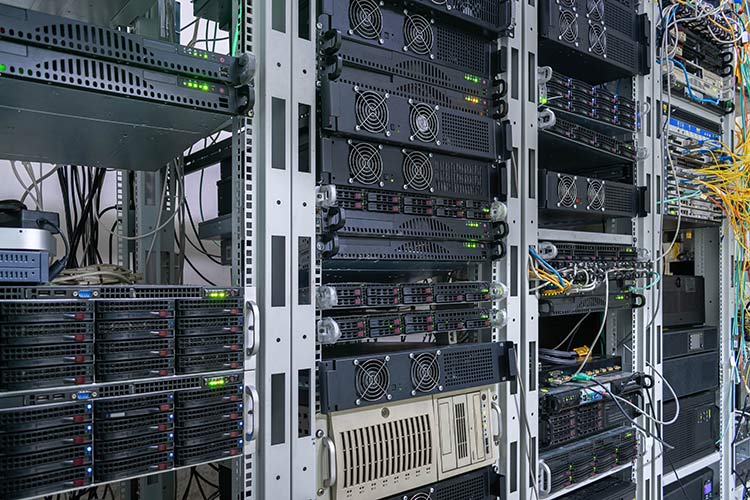
Whether the job involves hardware or software, every server needs maintenance from time to time. These regular checkups keep everything running smoothly, so the risk of data loss and downtime stays low. Network administrators, third-party service providers, or the original equipment manufacturer can handle server maintenance. In any case, it involves a periodic check which ensures that both hardware and software are running efficiently.
Before any maintenance work, you need a detailed plan that lists every task. This comprehensive server maintenance checklist for 2024 serves that purpose. It breaks the procedure into clear steps so you miss nothing, whether you run Windows or Linux servers. Here we go.

What is Server Maintenance, and Why is it Important?
Server maintenance means checking and updating a server or group of servers, so that everything runs smoothly and securely. The maintenance process involves monitoring the server and analyzing the data, putting preventive measures in place, and fixing issues when they appear. Typically, these steps include data backups, security checkups, making sure that automated server monitoring is running properly, and reviewing the server’s performance in general.
Why is conducting regular checkups important?
Already existing errors need fixing, however, a preventive approach can go a long way in avoiding future issues. Running server maintenance regularly helps identify vulnerabilities and anomalies before they develop into more severe problems. Periodic maintenance can reduce the risk of failure and malfunction, improving reliability, resilience, and server health.
Some checks run yearly, monthly, or weekly, but others must run daily. So, server maintenance can be quite complex and hard to follow without a thorough checklist.
These templates help you cover every step, so nothing essential slips through.
Daily Checks
- Update your antivirus software regularly.
- Backups and disaster recovery are crucial in restoring to normal after a failure, so make sure that your backups are successful. You can create an alert to receive a notification if a backup is unsuccessful. As for the number of backup copies, try to use the 3-2-1 backup method. Have at least three copies of your data, two on-site on different media and one off-site.
- Server service monitoring helps ensure high availability, and it also detects potential issues early.
- Check Active Directory. Check logs and replication health to rule out authentication issues.
Weekly Checks
- Backups are at the foundation of all data security, so check backups on a weekly basis, too.
- Server resource checks. Checking resource usage is essential because it helps you reach peak performance and avoid outages. The review should include CPU, memory, disc space, bandwidth, and service resource consumption. Tools like Zabbix, SolarWinds SAM, or LibreNMS can help you monitor resource usage.
- Check logs for critical errors. In Active Directory, check DNS logs for suspicious activity. Check and review security logs and DHCP logs. For large server infrastructures, a centralized logging server and log analysis can be helpful.
General Monthly Server Maintenance Checklist
Whether you manage Windows or Linux servers, complete these checks each month.
1. Review Data, Software, and Systems
- Review backups
- Review and update OS
- Update control panel
- Review and update applications
- Perform database maintenance
- Review backups and update if necessary
- Run checks for database corruption
- Update indexes
- Run checks on remote management tools
- Remote console
- Remote reboot
- Rescue mode
- Verify disk usage
- Verify CPU usage
- Verify RAM usage
- Verify network usage
- Free up storage
2. Security
- Change passwords
- Download and install patches
- Check that they install properly
- Review user accounts
- Scan for malware
3. Hardware
- Check the power supply and fans
- Check RAID fault tolerance
- Check cables
- Check A/C
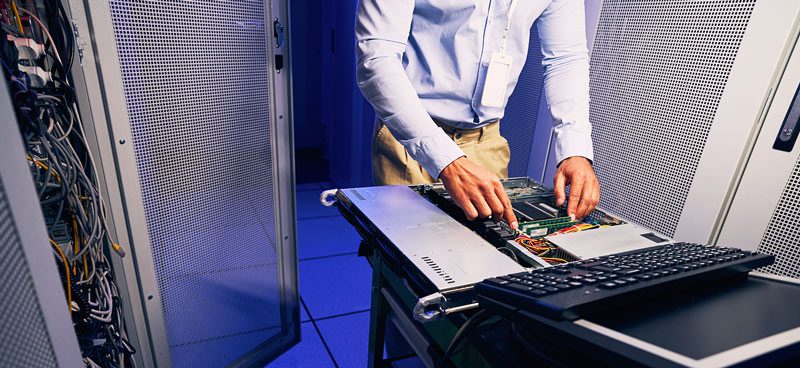
Windows Server Maintenance Overview
Depending on the operating system, there are a few specific checks that can reduce the risks of downtime. In the case of Windows servers, this is what you should pay attention to.
- Clear Event Logs and Temporary Files
Cleaning up event logs frees up space and makes it easier to navigate files if a problem occurs. Windows stores temp files in its own directory and in other locations. Just like log files that are no longer needed, temp files can occupy space as well. Delete them to free up space.
- Review Server Uptime
A server uptime check is necessary to determine if the system performs correctly and reliably. Use available tools to check uptime on all servers.
- Review Drivers
Outdated drivers can cause performance issues, so check for them regularly. Windows does not update drivers automatically unless you enable Windows Update, so you might need to update them manually.
- Defragment
If you want to keep your Windows server healthy, defragmenting your hard drive is not something to skip. While Windows Server defrags its own drives automatically, you can manually defrag connected hard drives. Defragmentation is a must if your server is taking too long to boot or behaving unusually. However, defragmenting monthly is a great server maintenance method for optimizing performance.
- Review Services
Services are crucial to correct operation, and you should never touch some of them except in special cases. While these are crucial to running Windows, other background services and applications can waste resources. After carefully selecting the non-essential ones, you can safely disable the ones you don’t need.
Security Maintenance
- Install Windows Security Updates
Install to identify security vulnerabilities and obtain software updates. Microsoft releases essential security patches every second Tuesday of the month. Keep an eye out for them or automate installing them. You should also scan regularly for missing patches.
- Software Patches
Third-party software patches are also important for the health of the computer. Verify the compatibility of the patches with your Windows server version.
- Scan for Vulnerabilities
Scan servers and networks regularly to avoid security concerns. Several scanner tools for Windows can handle this.
- Review Account Security
Inactive user accounts can become a security issue, especially when nobody reviews them. Check for unused accounts and disable them.
- Passwords
For security reasons, local administrative account passwords should be reset monthly or at least quarterly.
- Scan for Malware
Malware is dangerous because it can get into your computer with a simple click, steal personal information and passwords, and even infiltrate other viruses. Therefore, run a malware scan at least weekly to protect your data and system from attacks. You can do this with Windows Defender.
Linux Server Maintenance Overview
Many items on the server maintenance checklist overlap with Windows and Linux servers, however, there are several differences in the methods and tools used.
- Clear Logs
Old logs can be a burden on Linux servers, too, so it’s good to clear them regularly. For extra safety, you can back them up, and review them before deleting.
- Clear Old Software and Kernels
You can remove old software and kernels manually, or use the auto clean or auto remove command.
- Review Disk Usage
A full filesystem can cause serious trouble, such as downtime. Check filesystem usage with the ‘df’ command and free up space.
- RAID alerts
Monitor RAID alerts so that you avoid system failures.
- Always Check Backups
Checking that your backups are successful and functioning is key to server health. Periodically test backup restores to see if they function correctly.
- Update OS
Update monitoring and patch management systems are crucial because they notify you when updates appear. Updating is crucial for resiliency, so make sure you get those updates.
- Install All Patches
Keep an eye out for those patch releases to install and upgrade new packages using yum or apt.
- Review Remote Management
Making sure your remote management tools are up and running is crucial in server management. Use the remote reboot, remote console, and remote rescue mode for remote server maintenance.
- Check Automation and Scripting
Make sure that everything starts correctly after a reboot. Check if shell scripts and cron jobs are functional. You can use integrated automation tools like Ansible or Puppet.
- Review User Accounts and Permissions
People often forget unused user accounts, so delete them on all server types for security reasons. It also helps to check regularly for changes to the permissions on important files.

To Wrap Up
By conducting server maintenance regularly, you ensure that the risk of failures is down to a minimum. If server health is important to you, but you don’t have the time or resources necessary for a regular maintenance routine, you can still opt for fully managed dedicated server solutions. Our experienced team at Volico Data Centers offers managed services so that you don’t have to deal with the hassle of server maintenance.